Mikan Days
support.
Short guides for calculations, milestones, and widgets. Find your answer below, or write to us if you need a hand.
How do I calculate dates in Mikan Days?
Open Settings using the gear button, then choose the calculation mode you need.
- Date Distance
- Choose one date to see how many days remain until it, or how many days have passed since it.
- Date Range
- Choose a Start and an End date to see the days between them. January 1 to January 2 is one day.
- Date Arithmetic
- Choose a starting date, Add or Subtract, an amount, and Days, Weeks, Months, or Years to find the resulting date.
In Compact layout, tap the large number or a date on the result card to open the inputs. Prefer a calendar below the card? Choose Settings → Layout → Classic.
Try the free web date calculator ↗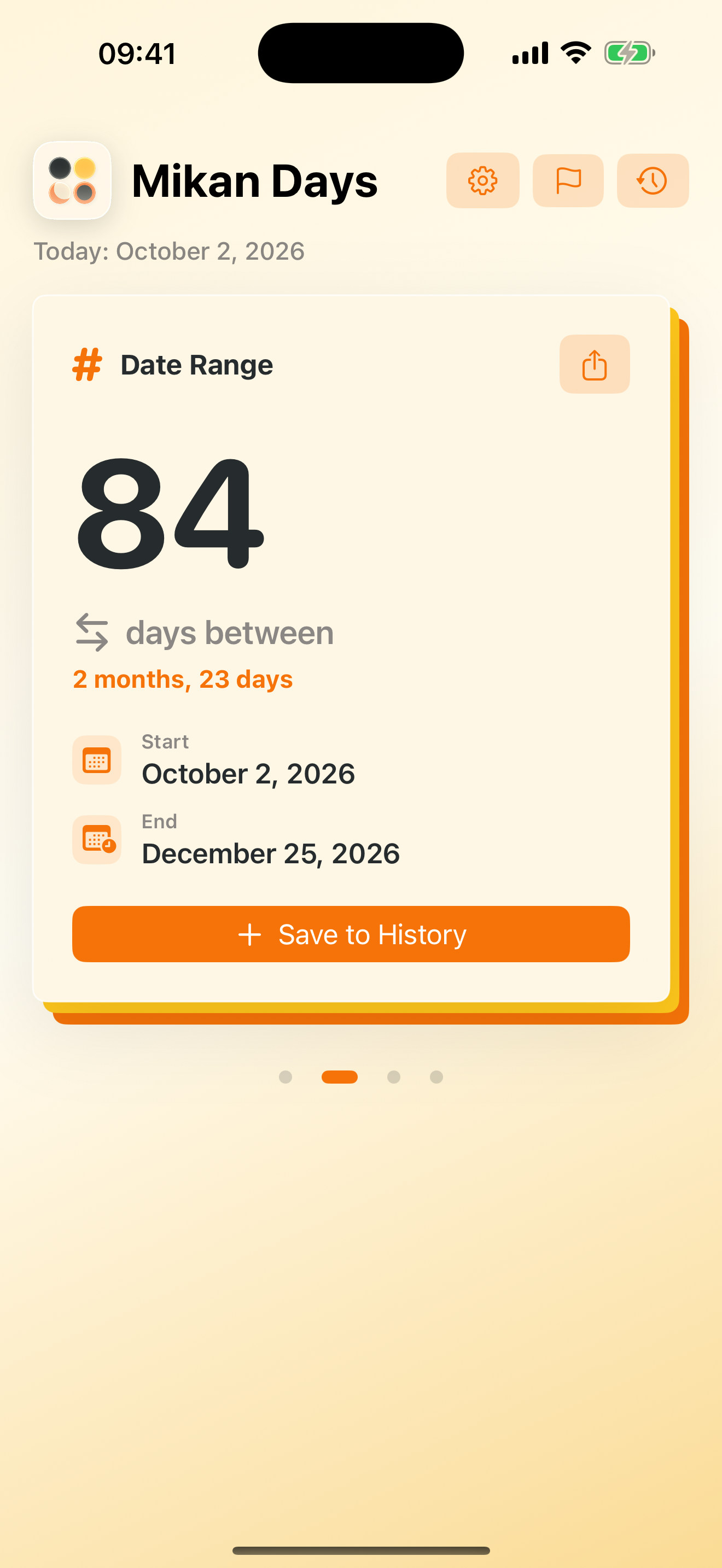
How do I save and reopen a calculation?
Save a Date Distance or Date Range calculation to History so you can return to it later.
- Choose your dates and tap Save to History.
- Open History using the clock-arrow button.
- Edit the entry’s title to give it a useful name.
- Tap its Load calculation button to put the dates back in the calculator.
History is also the source for the Mikan History widget. A milestone is a separate named date; use Milestones for an anniversary or another date you want to keep close.
How do I add a milestone or anniversary?
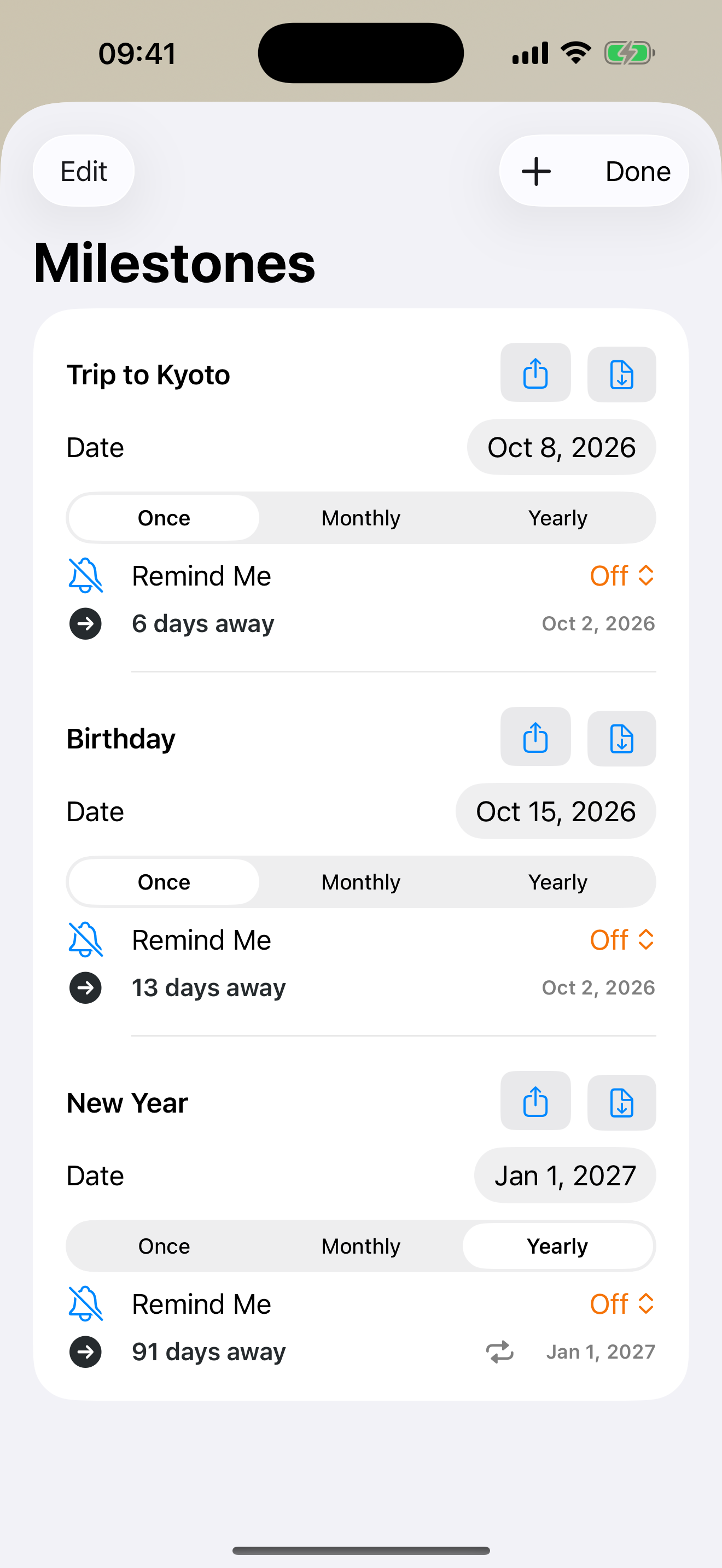
Open Milestones using the flag button, then add a named date.
- Tap the + button to add a milestone.
- Enter a name and choose its date.
- Use Repeats if it should return monthly or yearly, or leave it as a one-time date.
- Tap Done when you’re finished.
A repeating milestone counts toward its next occurrence. You can return to Milestones to change its name, date, or repeat setting.
How do I get a milestone reminder?
Use Remind Me on the milestone to choose a reminder on the day, the day before, or a week before. Allow notifications when prompted. If permission is disabled, turn on Mikan Days notifications in your iPhone’s Settings.
How do I add a Mikan Days widget?
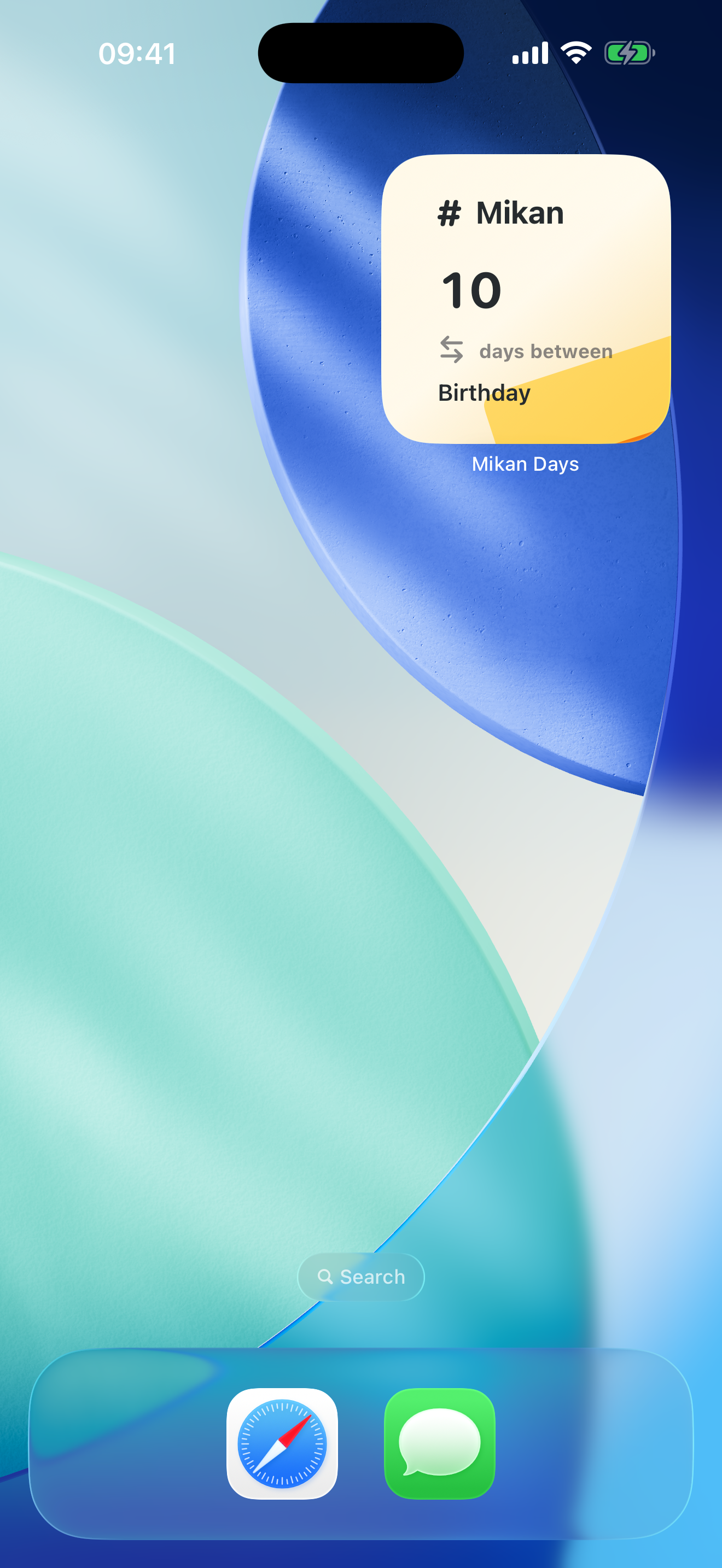
Add Mikan Days through your iPhone’s Home Screen widget gallery. Save a calculation or milestone in the app first if you want the widget to display it.
- Touch and hold an empty area of your Home Screen until the apps jiggle.
- Tap Edit → Add Widget, or the + button on older iOS versions.
- Search for Mikan Days.
- Choose Mikan History, Mikan Year, or Milestone Countdown, pick a size, and tap Add Widget.
- Place it where you like and tap Done.
How do I choose what a widget shows?
Touch and hold the widget and choose Edit Widget. In Mikan History, select saved History Items; leaving the selection empty shows your latest saved calculations. In Milestone Countdown, choose a milestone or leave it empty to show the next upcoming one.
Why is my widget empty or showing an older count?
Check that you have saved an entry of the right type: Mikan History uses History, while Milestone Countdown uses Milestones. Open the app to check your entries, then review the widget’s selection. iOS schedules widget refreshes, so a change may take time to appear.
If Mikan Days is missing from the widget gallery, open the installed app once and check the gallery again. Contact us if it still doesn’t appear.
How do I see and change my year progress?
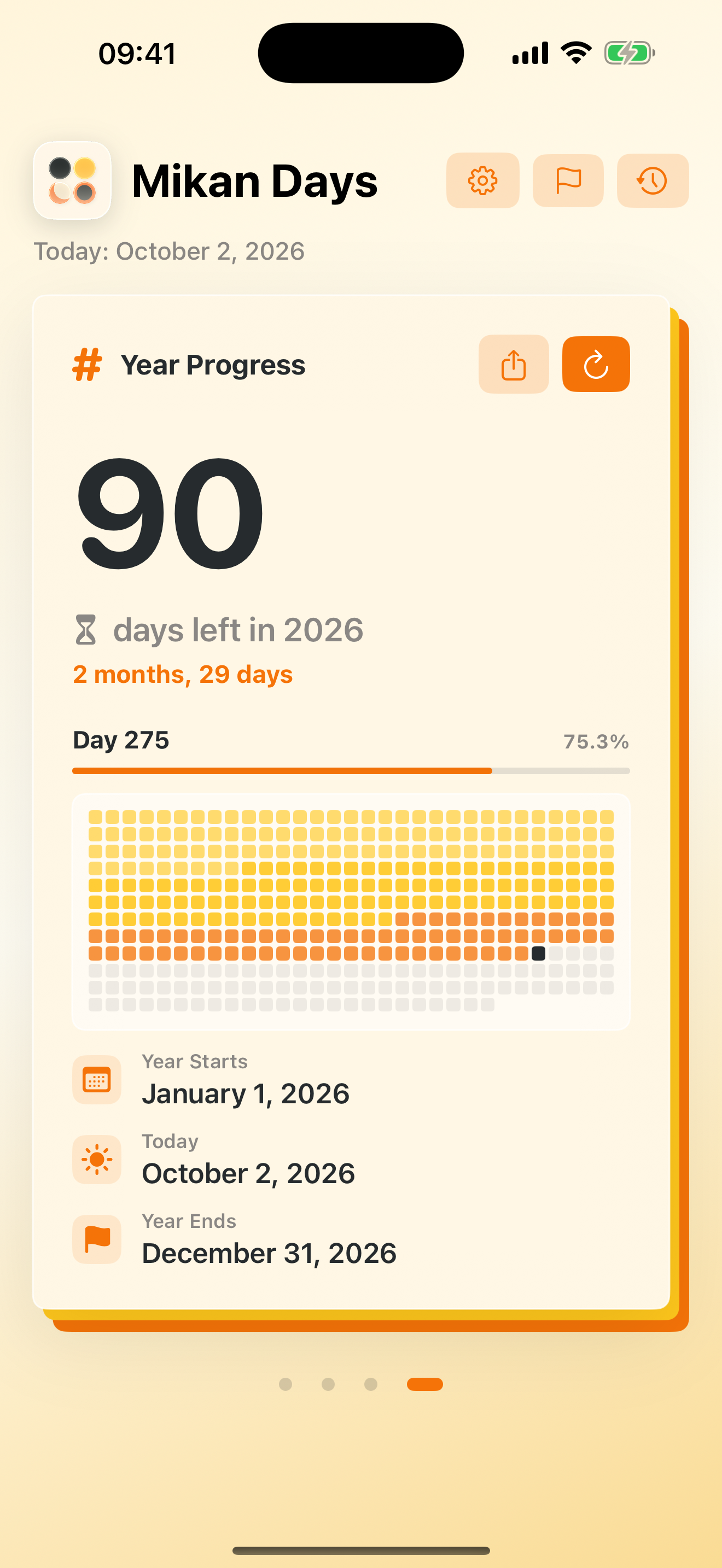
Choose Year Progress in Settings to see the current day of the year, the days left, and a visual view of your year.
With Year Progress selected, open Settings and choose a Theme. Add the Mikan Year widget to see your year on the Home Screen.
Day 1 is January 1. The days-left count is the number of days after today through December 31, so it reaches zero on December 31. Leap years contain 366 days.
How do I delete a saved calculation or milestone?
Open History or Milestones, swipe left on the entry, and tap Delete. You can also tap Edit to remove entries.
Are my dates synced or stored by Shojum?
Your saved entries and preferences stay on your device. Mikan Days has no account or app-operated cloud sync, and Shojum cannot access or restore your saved dates. Device backups may include app data, depending on your Apple settings.
Still need a hand?
Email Mikan Days support ↗